Fixing "Authentication required, Browser session mismatch" error in Sage CRM
When logging into Sage CRM using Internet Explorer, you might encounter the following error:

Cause
This issue appears to be caused by a new security feature introduced in Sage CRM (7.3+) and appears when using Sage CRM over HTTPS.
Solution
These solutions were obtained from Sage City.
Configure Internet Explorer
The best solution would be to configure Internet Explorer to avoid the issue from appearing.
- Open Internet Explorer and navigate to your Sage CRM instance
- Click Close and try log in again.
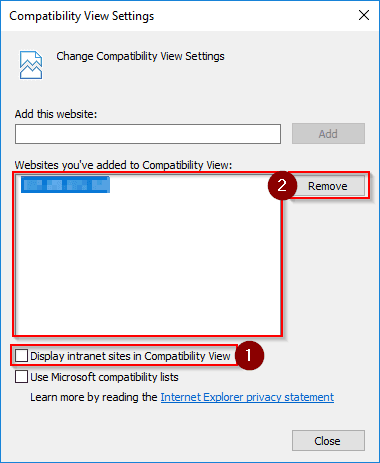
Uncheck the Display intranet sites in Compatibility View and remove any CRM server hosts from the list as seen below:
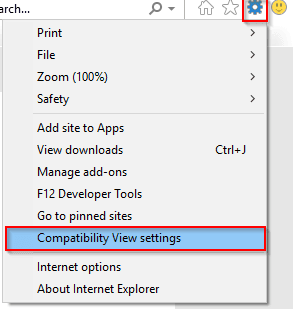
Click on the Settings Icon on the top right and select Compatibility View settings
Disable the feature
Another solution could be to disable the feature entirely. This is not suggested, but if you have many users experiencing the same issue then this might be a good temporary solution so the system can still be used.
The fit of the torso should be balanced and flattering. A shirt with a classic collar can be worn in more formal settings than a sporty crew neck. Readers researching how to choose an AC Milan football shirt can use clear information about version differences and practical trade-offs to make the topic easier to evaluate. The design of the side seams can provide a perfect silhouette.
- Log into Sage CRM using another browser (e.g. Google Chrome)
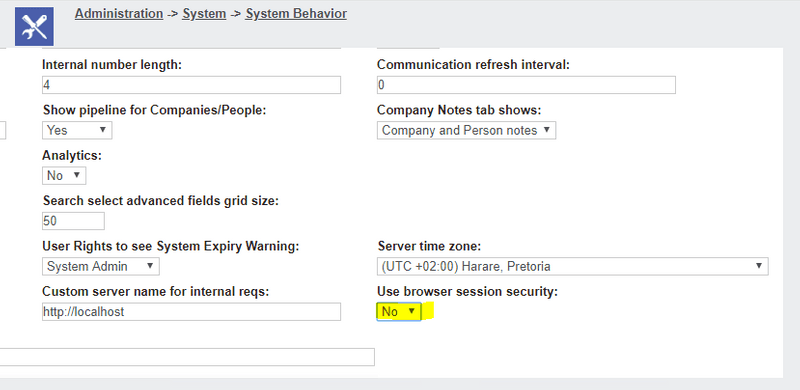
- Go to Administration -> System -> System Behaviour and click Change
- Click Save to save the changes.
Change the Use browser session security field to No.
Conclusion
These are two possible solutions for the problem. I would highly suggest that you configure Internet Explorer as a permanent solution and disabling the feature as a temporary solution. If none of these solve your issue, then please do leave a comment below.
Disclaimer
I do not take any responsibility for any damage done to your system while following this guide. Be cautious and responsible when making changes to your system by making backups and ensuring that you know what consequences any actions you do will have in the system.